 FLUJO
FLUJOGive your helper
something to read.
Let’s prepare a small coffee workshop. You’ll connect a web-reading tool, give it to an assistant, and turn a public brewing guide into a useful checklist.
Screenshots show the published npm release FLUJO 3.46.2 on Linux, recorded October 11, 2026. Your screen can differ by version. Select any screenshot to enlarge it.
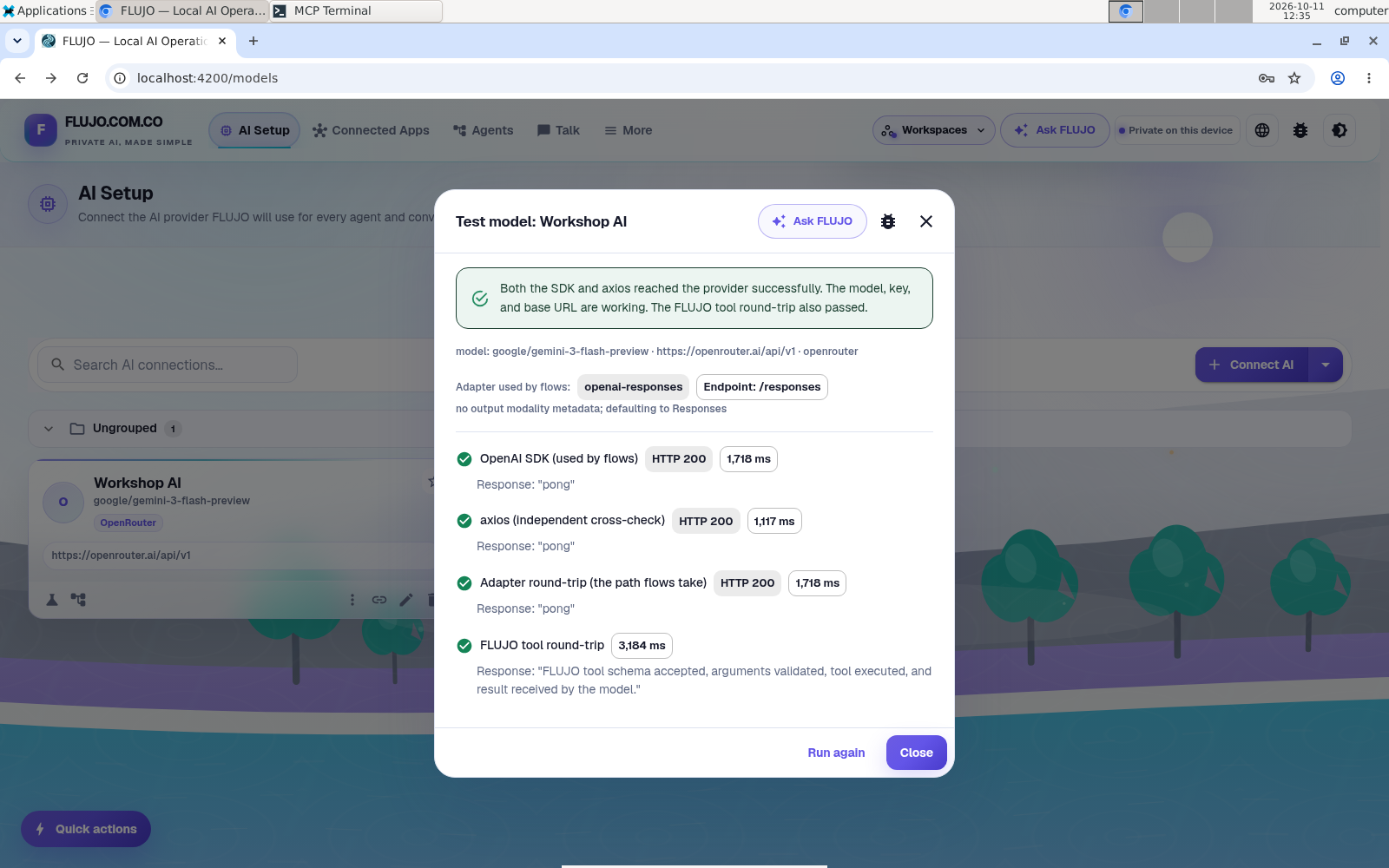
Start with one working AI.
Install and open FLUJO, then connect a model in AI Setup → Connect AI. Save it and select Test model. Continue once the test succeeds.
Keep FLUJO’s server running as you work. Model calls can use your provider’s allowance or incur charges.
Add a way to read the web.
A connected app gives your assistant a tool it can use. This example uses the open-source Fetch MCP server to read a public page. “MCP” is the connection standard between the tool and FLUJO.
- Open Connected Apps → Connect App.
- Choose I have connection details → In a GitHub repository.
- Paste this address into GitHub repository URL. Select 1) Parse, then 2) Clone repository.
https://github.com/zcaceres/fetch-mcp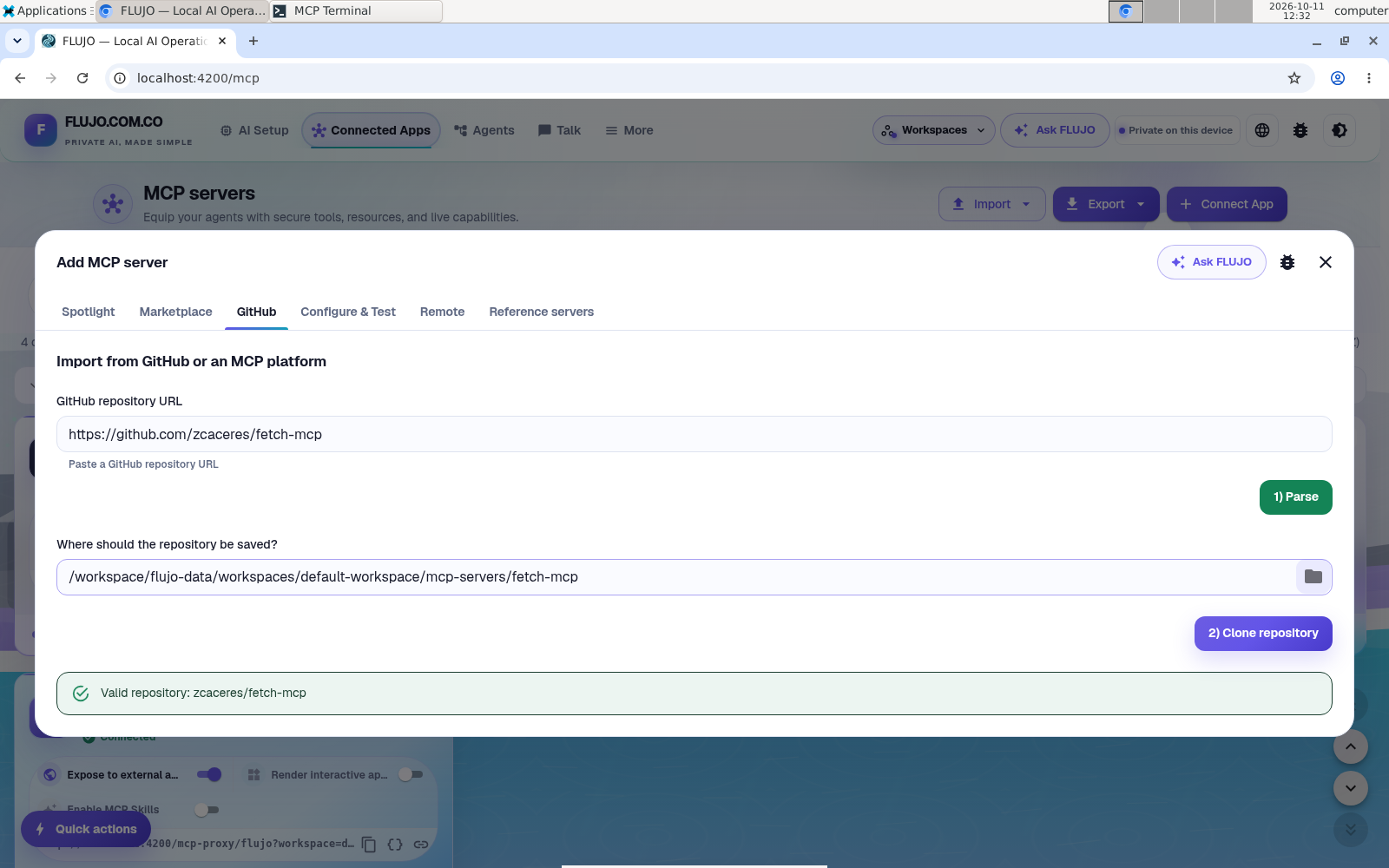
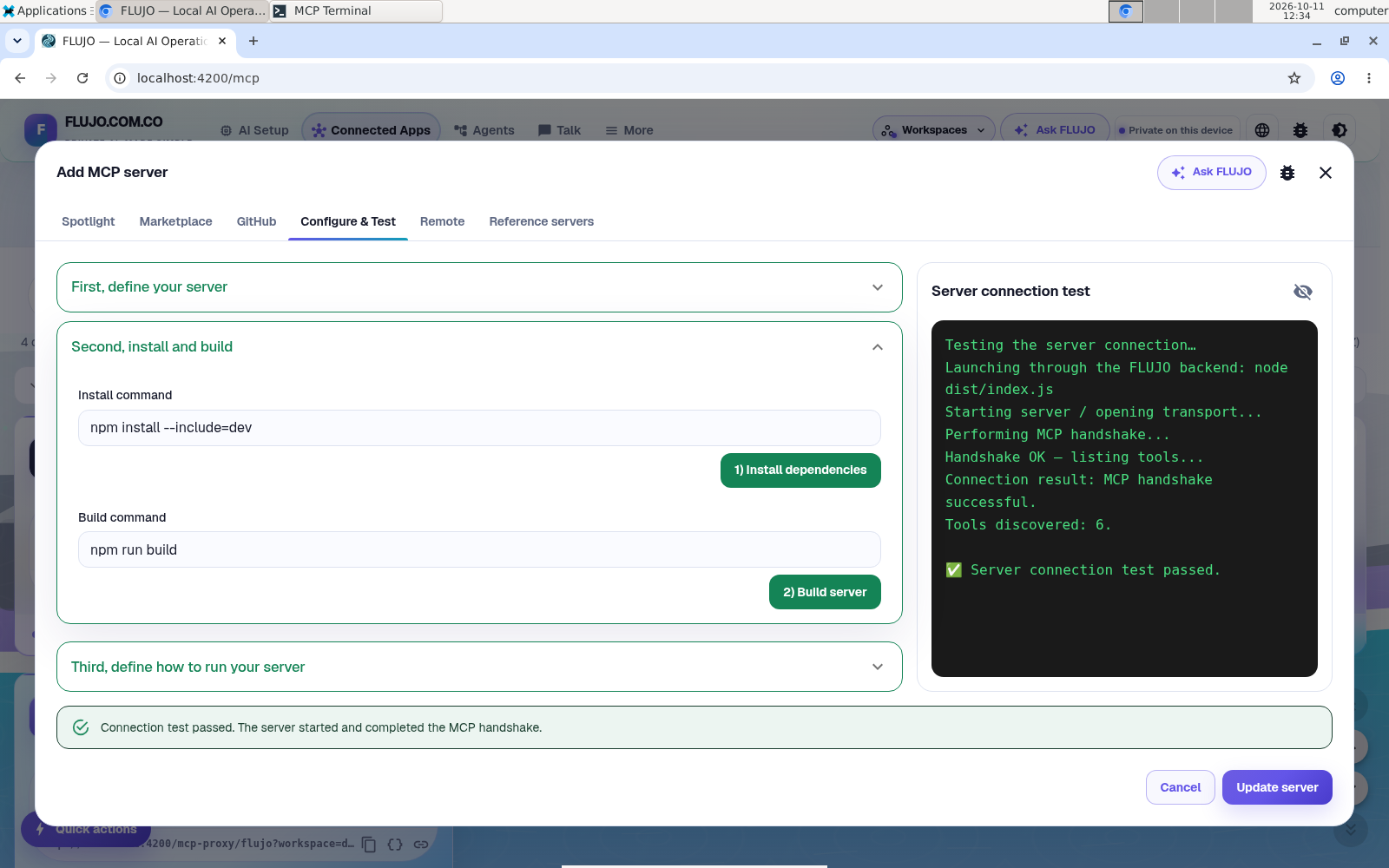
For this repository, change the suggested Install command to:
npm install --include=devSet Build command to npm run build. Select 1) Install dependencies and 2) Build server. The recorded release suggested a global package command, npm install -g mcp-fetch-server, which needed this correction to build the selected repository.
This server’s build also needs Bun on the machine running FLUJO. Installing a server executes its installation and build scripts on your computer; review the source first.
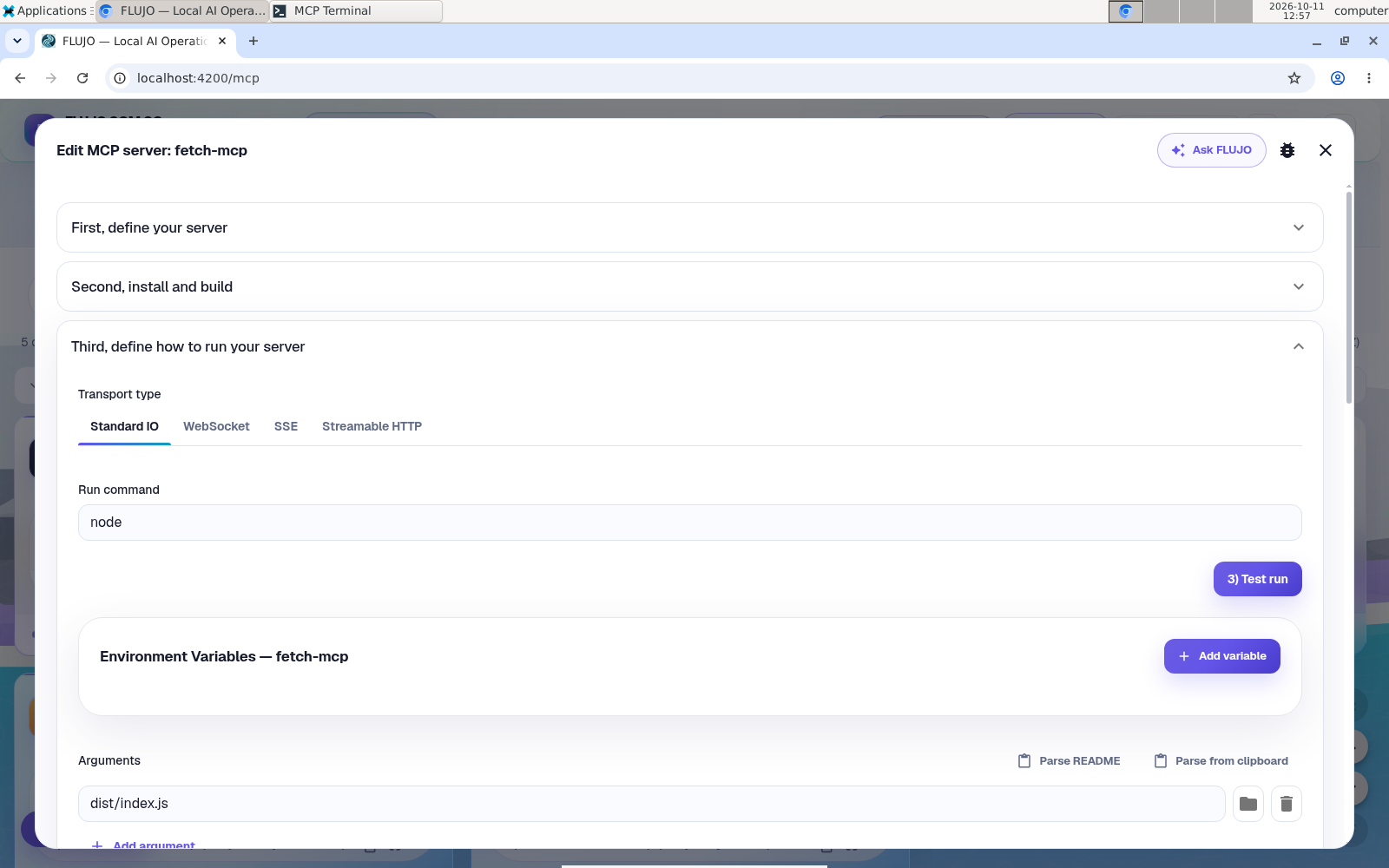
In Third, define how to run your server, use node with argument dist/index.js from the cloned repository’s directory. Select 3) Test run. After it succeeds, choose Add server for a new connection, or Update server when editing the saved connection shown below.
See the run command and argument
Try the tool before the assistant.
Open the connected server’s tool inspector and choose fetch_readable. Give it the National Coffee Association’s pour-over guide:
https://www.aboutcoffee.org/brewing/pour-over-coffee/Set max_length to 20000 if that field is shown. The default 5000-character extract in the recording cut off important article content. Run the test and read the returned page text. A connected status alone does not prove the tool can read this page.
The recorded helper’s page reads and follow-up corrections are preserved in the saved run record. The answer below shows why checking the returned content matters.
If the page doesn’t come back
Check the tool’s error, internet connection, and page address. Revisit the server’s installation logs if it cannot start. Get a successful individual tool result before trying the agent; this makes it much easier to find the problem.
Make the workshop helper.
- Open Agents → Start simple. Choose No, I’ll build it myself if asked.
- In Workflow goal, ask it to read the full source with fetch_readable, using
max_length 20000. If the result is cut off, retrieve the rest before answering. Ask for a beginner workshop checklist, keeping source facts separate from suggestions. Choose Create goal step. - Select its AI step, then Choose an AI. Pick the model you tested.
- Use the + beside Uses Apps to add fetch-mcp to the AI step. Tell the helper to read provided pages with fetch_readable before answering.
- Name the agent Coffee workshop helper and save it.
Give the helper just the tools this job needs. Web reading is enough for this task.
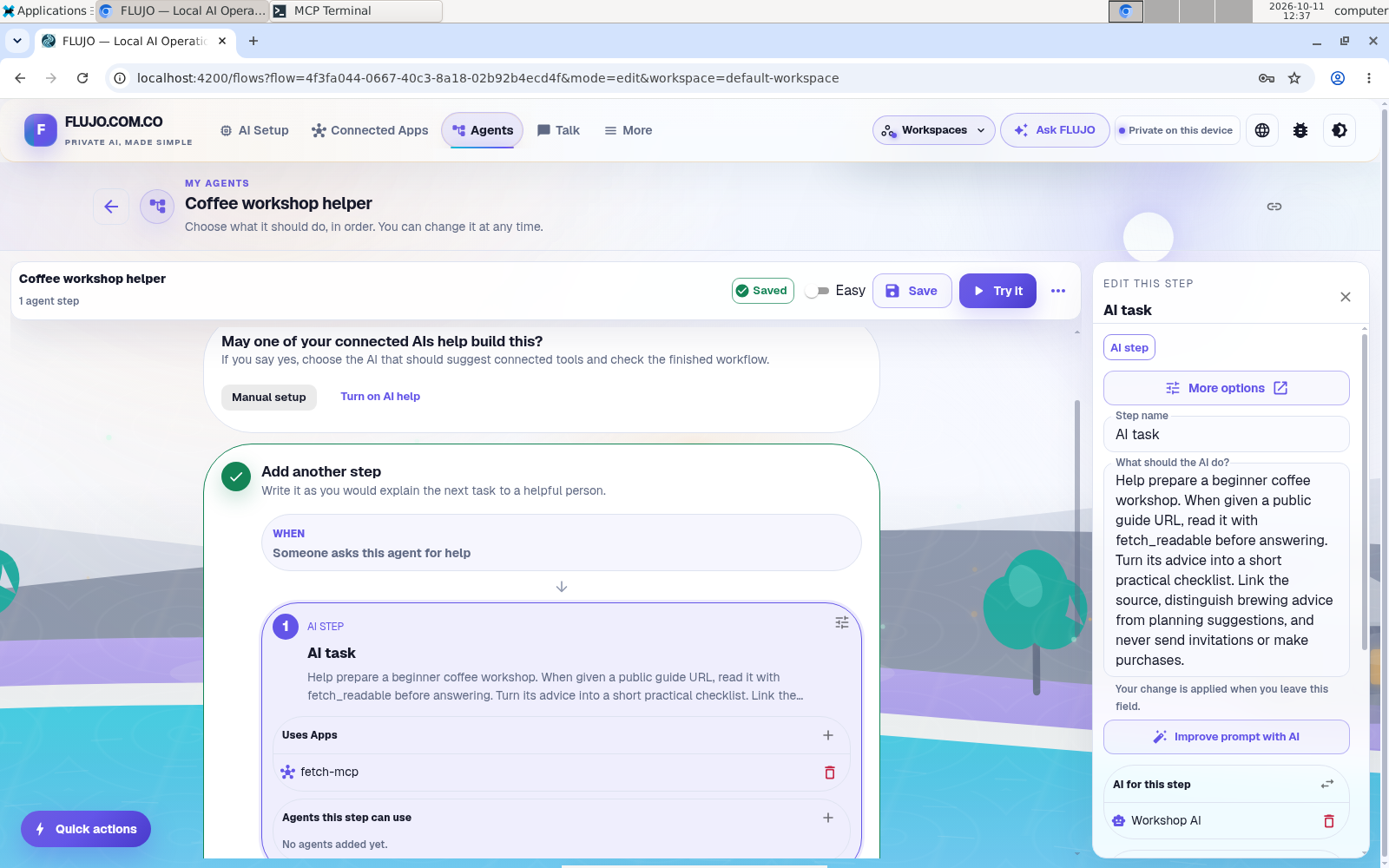
Ask for something you can use.
Choose Try it in the saved agent’s toolbar; initial setup may offer Try my agent. You can also reopen the saved helper through Talk → New. Ask it to read the guide before preparing the checklist.
Read the full guide at https://www.aboutcoffee.org/brewing/pour-over-coffee/ with fetch_readable, setting max_length to 20000. If it is cut off, retrieve the rest before answering. Help me prepare a 90-minute beginner workshop for six adults at three shared stations. Make a short checklist, link the source, and separate its brewing advice from workshop suggestions. Don’t guess missing details, send invitations, or buy anything.
Check the conversation for both a successful tool result and the assistant’s answer. Read the checklist and follow the source link. If the tool failed, ask the helper to fix or explain that failure before relying on its answer.
What happened in the recording: the first answer’s brewing details needed correction. We fetched a longer extract and checked the full article, then asked the helper to revise the checklist. The revised result below separates source advice from workshop choices. One temperature detail still needed review.
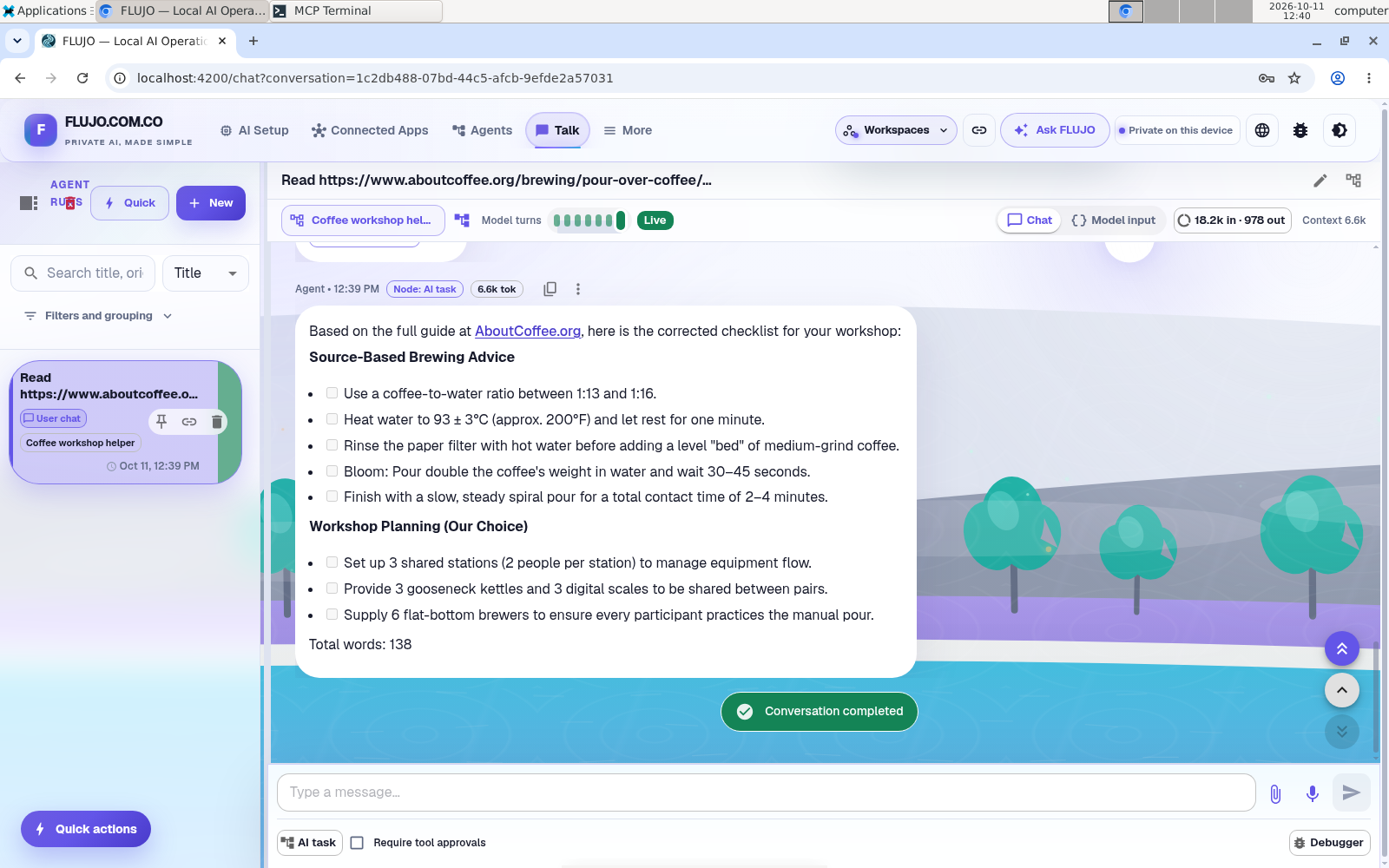
One more detail to correct: the source’s target water temperature is 93 ± 3°C. Its one-minute rest instruction applies after a full boil, not after reaching that target. The pictured answer mixes these instructions. Check the source’s kettle guidance before using the checklist.
Now add your real constraints.
Tell the helper how many people are coming, what equipment you already have, and how long the workshop should last. Ask it to update the checklist and call out assumptions. You’re shaping a useful result through conversation.
Your data and choices. The public guide goes through the web tool. Your prompt and selected tool results go to the model provider you choose. Read about data and costs.